Create a Wallet and Receiving Address (Windows)
This guide does one thing: create a wallet and get a receiving address. About 5 minutes. You do not need to wait for the blockchain to finish syncing.
1. Download
Open the official releases page and download the Windows installer:
https://github.com/bitcoinknots/bitcoin/releases
Pick the file named like bitcoin-<version>-win64-setup-pgpverifiable.exe.
⚠️ Download only from the official link above. Installers from search ads or third-party sites may be malicious and can lead to stolen funds.
2. Install and launch
Double-click the downloaded .exe and accept the defaults. Then open Bitcoin Knots from the Start menu.
On first launch it asks where to store data — choose Use the default data directory and click OK.
💡 You may see a disk-space warning. Click OK to continue.
3. Create a wallet
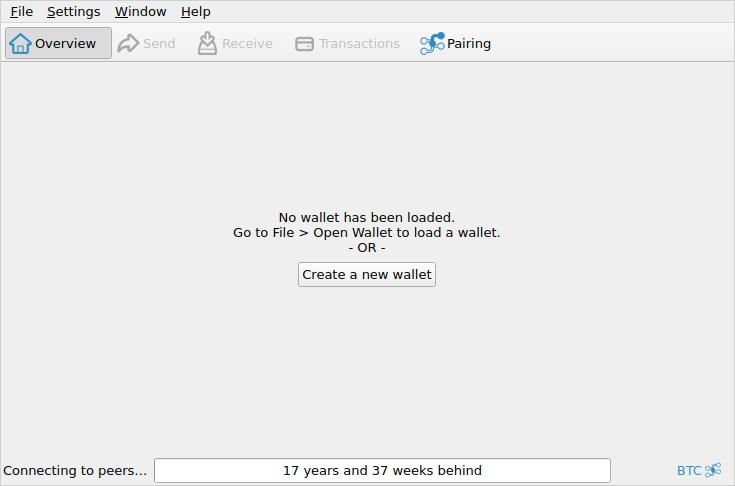
The main screen shows "No wallet has been loaded". Click Create a new wallet.
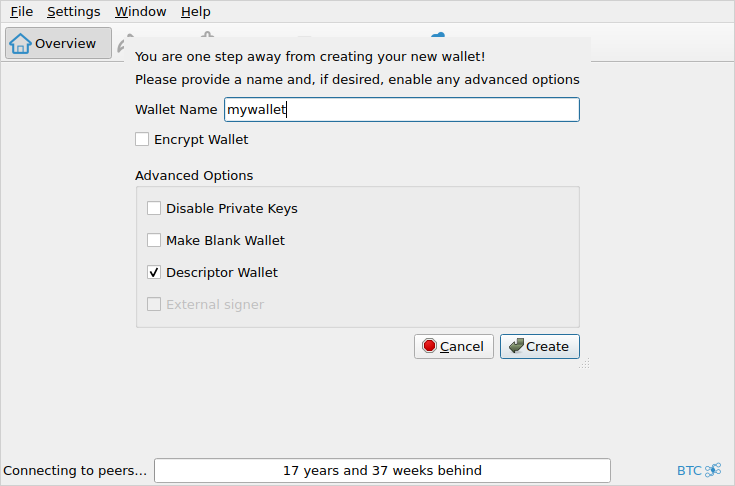
Type any name in Wallet Name (for example mywallet), leave all other options as they are, and click Create.
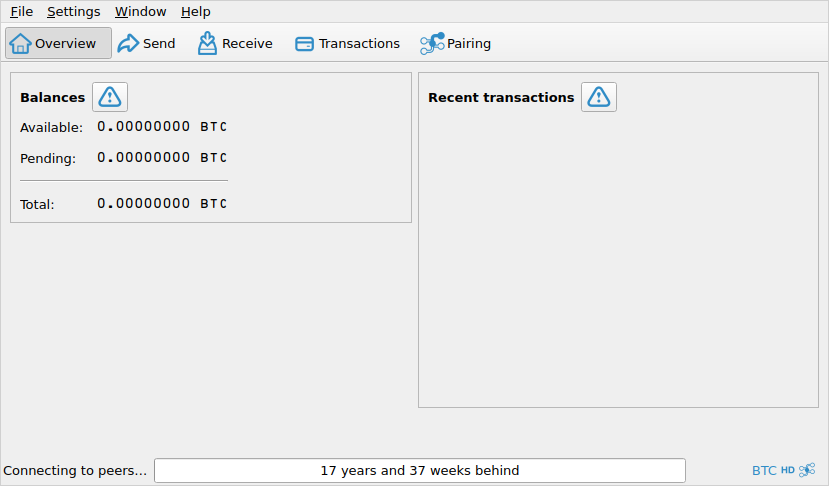
You are returned to the main screen with a balance of 0.
4. Get your receiving address
Go to the Receive tab.
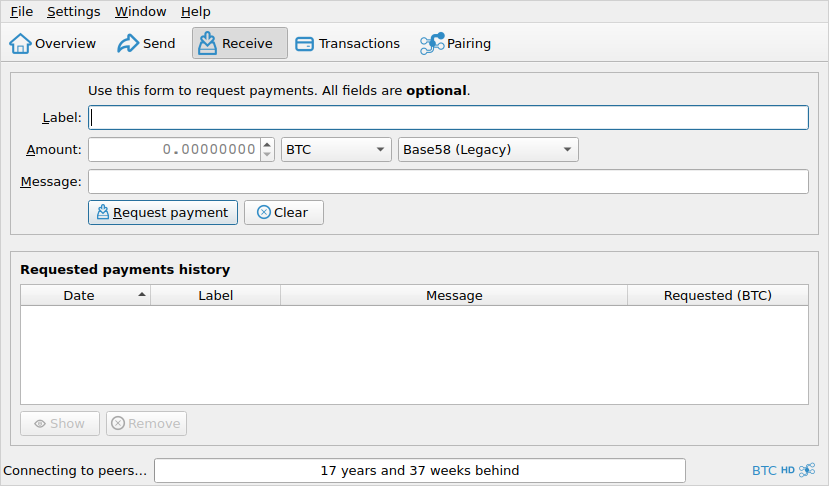
⚠️ This is the easiest step to get wrong. The address-type dropdown defaults to Base58 (Legacy), which produces an old-style address starting with
1.
Click the dropdown and choose Native Segwit (Bech32).
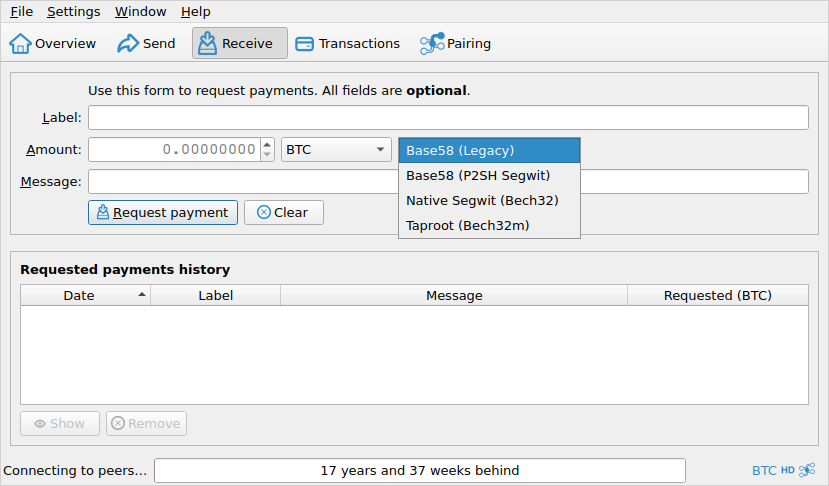
Then click Request payment. The dialog shows your receiving address — click Copy Address to copy it.
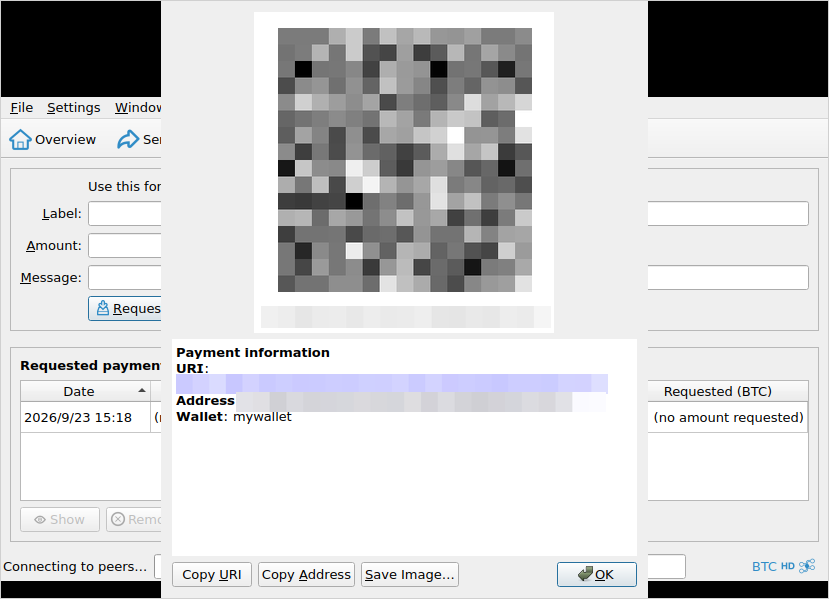
(The QR code and address are masked in this example image. Yours will show your own address.)
The address must start with bc1q. If it does not, go back and re-select the address type.
5. Back up your wallet (important)
Menu File → Backup Wallet…, and save it to a USB drive or another safe place.
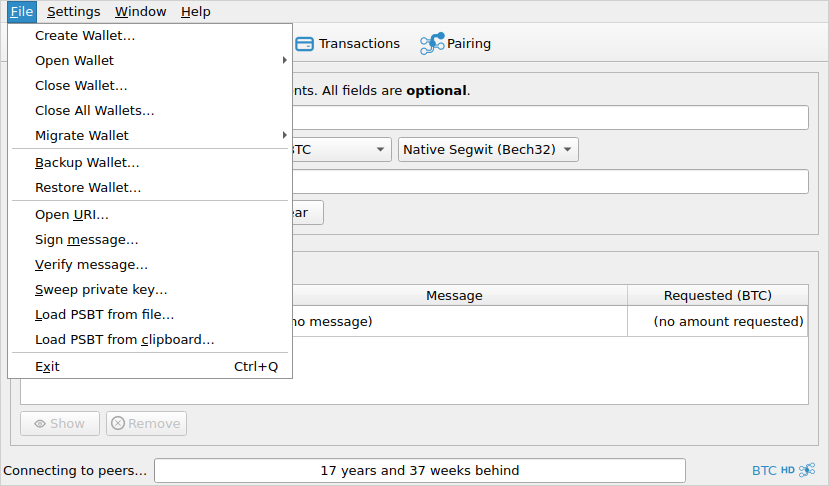
⚠️ Losing this backup means losing your funds permanently. Nobody can recover it. Back up now, not later.
6. Syncing and closing the app
After copying your address, just leave the app running and let it sync — that is normal use. The first sync takes a while.
You can close the window at any time, even mid-sync. Nothing is damaged. The next time you open it, syncing resumes from where it left off rather than starting over.
Your wallet and address were saved when you created them and do not depend on sync progress.
FAQ
The bottom bar says "17 years and 37 weeks behind" — is that normal? Yes. That is the sync status. It does not affect creating a wallet or getting an address.
Do I need to wait for syncing? No. Creating a wallet and getting an address do not depend on sync progress.
How much disk space does syncing need? A full sync needs roughly 810 GB. You can close the app at any point during syncing and continue later.
Where is my wallet file?
C:\Users\<your-username>\AppData\Local\Bitcoin\wallets
Can I use an address from another wallet? Yes, the address format is compatible. Just make sure you control and safely store its private key or seed phrase.
Screenshots are from Bitcoin Knots v29.4.2. The layout matches the Windows version; window borders and fonts differ slightly on Windows.